Drive a Surron Controls
PC and mobile inputs for driving, wheelies, tricks, menus, and HUD comfort.
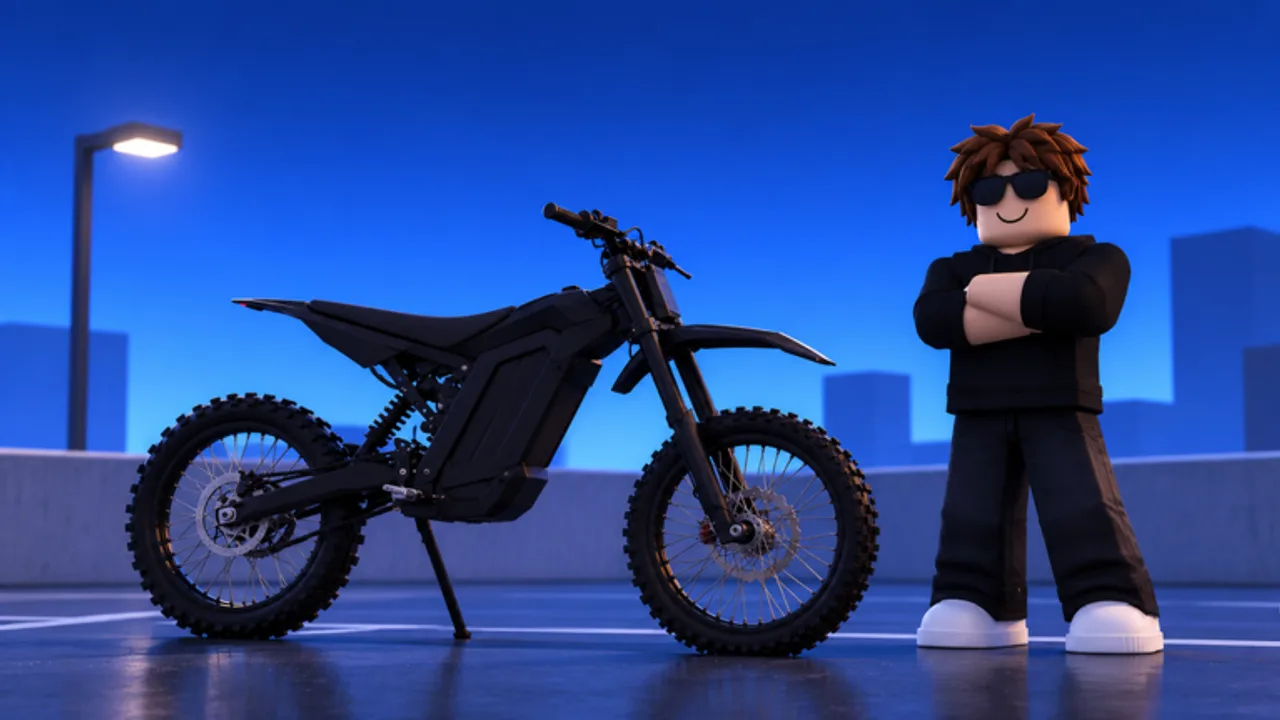
This Controls guide is the input companion for Drive a Surron on Roblox. Whether you play on keyboard and mouse or a phone touch HUD, you need reliable driving, a clean wheelie pop, trick inputs at the park, and fast access to shop menus for codes and upgrades. Exact keybinds can vary with Roblox device settings and future patches from Huge T, so treat the layouts below as the standard expectations and verify in-game after reading Updates.
Pair this page with Getting Started for your first session order, and with How to Wheelie once the buttons feel natural.
Core actions you must map in your head
Regardless of platform, lock in these action categories:
- Drive — accelerate, brake/reverse, steer left/right
- Camera — look around without losing the bike line
- Wheelie — pop and manage balance with throttle
- Tricks — flips, tailwhips, and ramp actions in the trick park
- Menus — shop (left side), Codes tab, customization, and any chase or delivery prompts
If any category feels slow, fix that before Hard police chases or longest-wheelie attempts. Input lag in your brain is still a crash.
PC / keyboard overview
On PC, Roblox vehicle experiences typically use WASD (or arrow keys) for movement, mouse for camera, and contextual keys for actions like wheelie and menu toggles. In Drive a Surron you should confirm:
- Which key accelerates versus brakes on your bike.
- Which input pops the wheelie — practice in a empty lot until muscle memory sticks.
- How you open the shop on the left to reach the Codes tab for RELEASE, WHEELIE, and SURRON.
- How trick inputs fire when you hit ramps (backflips, frontflips, 360s, tailwhips).
PC advantages are precision camera and stable framerate on a capable machine. Use that advantage: small mouse corrections while holding a wheelie beat giant steer panics. Bind comfort matters more than fancy overlays. If you remapped Roblox keys globally, double-check nothing stole your wheelie or brake key.
When menus feel buried, remember the early-game priority path: shop → Codes → redeem → close menu → ride. That path is documented step-by-step in Getting Started and Codes.
Mobile overview
Mobile uses on-screen thumb controls for steer/throttle and tap targets for actions. Drive a Surron is fully playable on phones, but HUD real estate is the main enemy. Before a serious farm session:
- Sit in a quiet spawn and identify throttle, brake, steer, and wheelie controls.
- Open the left-side shop once so your fingers know the Codes tab target.
- Do five short wheelie pops without moving far — mobile balance is harder if your thumbs fight each other.
- Only then start BEE EATS routes or Easy chases.
Mobile shines for quick sessions and rideouts with friends. It struggles when UI buttons overlap important sight lines or when your hands cover the road ahead. Fix comfort before blaming the bike tier.
Tricks and ramp inputs
The trick park and city ramps support flips and tailwhips for style. Learn tricks after basic driving, not before. A rider who can hold a stable wheelie and complete deliveries will progress faster than a rider who only knows a single flip but dumps every landing.
Practice plan:
- Approach a ramp straight with controlled speed.
- Trigger the trick input cleanly — one intentional action beats mashing.
- Prepare landing throttle so you do not face-plant the next cash opportunity.
- Return to wheelie farming; tricks are spice, not the economy.
Drag races every 15 minutes use the same driving fundamentals: straight launch, clean lane, no panic steer. Controls knowledge transfers.
Menus you will use constantly
- Shop (left) — purchases, upgrades, and the Codes tab
- Customization — colours, wheels, stickers, decals, effects (spend after farming basics)
- Delivery / chase prompts — accept or decline with intent; do not mis-tap into Hard heat mid-farm
- Leaderboard / social — check competitive targets via gameplay and the Players hub mindset
If a menu covers your wheelie sight line on mobile, close it fully before holding. Half-open UI is a common crash cause.
Mobile UI overlap troubleshooting
Community reports on Roblox vehicle games often share the same phone pain points. Use these practical mitigations in Drive a Surron:
- Lower HUD clutter. Close shop, chat, and extra panels before long holds.
- Adjust grip. Some players shift thumbs lower so action buttons do not cover the horizon.
- Avoid portrait-only struggle if landscape feels clearer. Orientation can change control spacing.
- Reduce other overlays. Recording tools and battery savers can add latency or cover buttons.
- Shorten sessions when hands fatigue. Tired thumbs miss brake taps and loop the bike.
- Do not start Hard chases while fighting the HUD. Learn escapes on Easy after controls feel settled (Police Chase).
If a patch moves buttons, re-do the quiet-lot calibration steps above and skim Updates. Do not invent new binds from memory after a UI change.
Controls checklist before you grind
- Accelerate, brake, and steer feel consistent.
- Wheelie pop is intentional, not accidental.
- Camera does not fight your turn direction.
- Shop → Codes path is one fluid motion.
- You can cancel menus instantly when a delivery or chase prompt appears.
- Mobile players have minimized overlap on the road view.
How controls unlock the rest of the wiki
Clean inputs make every other guide work:
- How to Wheelie assumes you can pop without looking down at the keyboard or thumbs forever.
- BEE EATS assumes you can steer city routes without mis-tapping menus.
- Police Chase assumes you can take corners under pressure.
- Tier List spending only pays off if you can actually control the faster bike.
Return to the Guides Hub for the full tutorial list, keep Codes handy after updates, and use wiki links for official place access. Master controls once, then spend your attention on balance, routes, and smart upgrades — not on hunting which button does what mid-crash.
Frequently Asked Questions
Quick answers to the most common questions.
Where is the codes menu in Drive a Surron?
Open the shop button on the left side of the screen, then select the Codes tab. Enter codes exactly as listed on the Codes page.
Are PC and mobile controls the same?
Actions match (drive, wheelie, tricks, menus) but the input method differs. PC uses keyboard and mouse precision; mobile uses on-screen thumbs and needs extra HUD care.
What should I practice first on controls?
Straight driving, clean braking, then short wheelie pops in an empty area before deliveries or police chases.
Why do I keep crashing on mobile during wheelies?
UI overlap and thumb fatigue are common. Close extra panels, free your sight line, and practice short holds before long farm attempts.
Do I need perfect trick controls to progress?
No. Tricks are for style at ramps. Wheelie holds, deliveries, and smart upgrades matter more for cash progression.
What if controls feel wrong after an update?
Re-check bindings in a quiet spawn and read the Updates hub. Patches can move UI or change feel; recalibrate before Hard chases.